Live channels
News, entertainment, local channels, sports and more.
The way TV should be
1,000+ live channels100,000+ movies & shows
Stop stacking monthly entertainment bills.
No monthly vSeeBox subscription.
Live TV, local channels, sports, movies, series and more—all brought together in one powerful entertainment box.
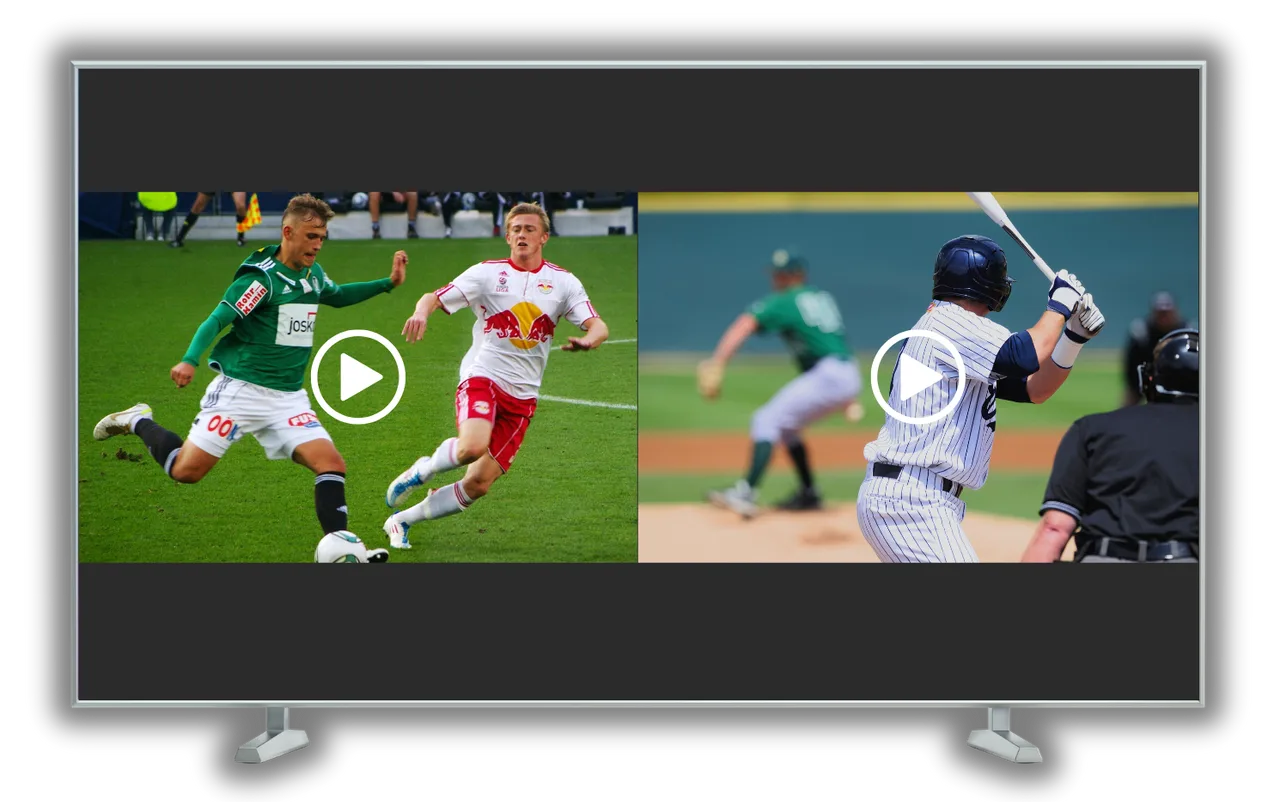
TonightLive sports · movies · local TV
News, entertainment, local channels, sports and more.
A massive entertainment library ready to explore.
Keep up with the action from one place.
Buy your box without another monthly vSeeBox bill.
Entertainment at a glance
A lot of entertainment in one place.
Entertainment, news, local programming and more.
A massive on-demand library ready to explore.
Keep up with sports and available live events.
Access available local channels alongside the rest of your entertainment.
Supported channels let you browse and watch earlier programming for up to 7 days.
Use supported viewing modes to keep multiple games or channels on screen.
Simplify the way you watch
Streaming was supposed to make TV simpler.
Instead, entertainment has been split across more apps, more services and more monthly bills.
vSeeBox brings your entertainment experience together in one place.
Movie serviceEvery month
Live TV packageEvery month
Sports add-onEvery month
Another appEvery month
$0/movSeeBox subscription
Paid third-party subscriptions, internet service, and third-party accounts are separate and not included.
What can I watch?
Probably a lot more than you expected.
Browse entertainment, news, local programming and more.
Access a huge selection of live sports programming and events.
Explore a massive on-demand movie library without jumping between endless menus and services.
Browse thousands of shows and series on demand.
Access available local programming alongside the rest of your entertainment.
Explore available live events directly from your entertainment system.
On demand
From movie night to discovering a new series, an enormous entertainment library is available right from your TV.
Search. Pick something. Press play.
Explore the appsLive television
Flip through 1,000+ live channels covering entertainment, sports, news, local programming and more.
No bouncing around between a dozen different apps just to find something to watch.
Built for the couch
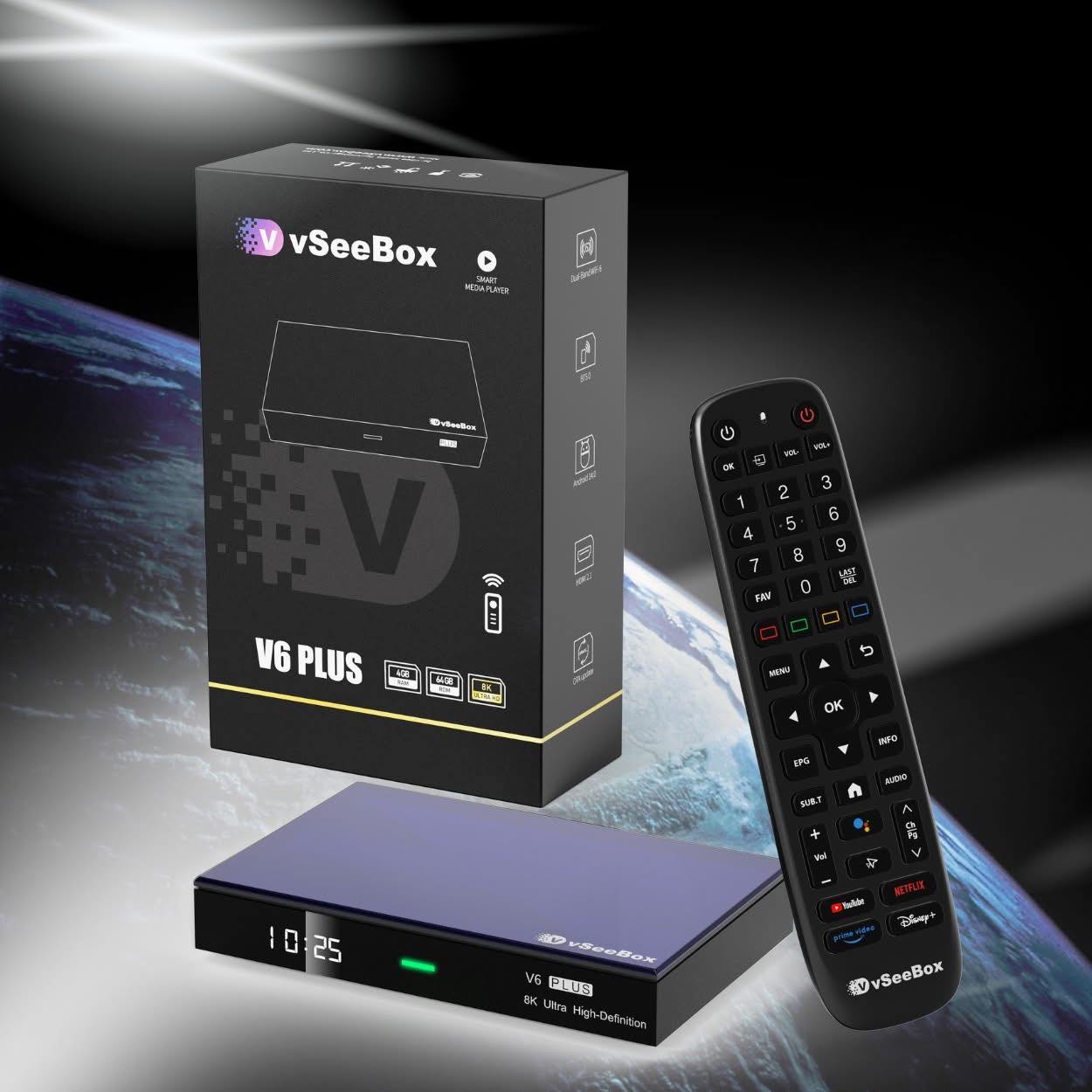
The vSeeBox V6 Plus is built to make accessing your entertainment fast and simple.
Turn on the TV, grab the remote and start watching.
A modern Android TV experience built for straightforward navigation.
Easy to use even when the lights are down.
Video decoding up to 8K at 60fps for today’s high-resolution displays.
Responsive navigation powered by the Amlogic S905Y5 processor.
ProcessorAmlogic S905Y5
Memory4GB DDR3
Storage64GB eMMC
ConnectivityBluetooth 5.0 · 10/100 Ethernet
Maximum outputHDMI 2.1
Video decodingUp to 8K at 60fps
Open the right app the first time
Every app has a simple purpose. Use this guide to jump straight to live TV, local channels, sports, movies, multi-view, or a backup source.
Best forEveryday Live TV
The primary Live TV app for live channels, sports, news, PPV events, and general television.
Start here when you want to watch something currently airing live.
Best forLocal Channels & Alternative Live TV
An alternative Live TV app with a different channel layout and a strong focus on local-channel categories.
Try this for a local channel or when you want another Live TV option.
Best forMulti-View & Expanded Live TV
Expanded Live TV with additional channels and split-screen or multi-view functionality.
Use this when several games, events, or channels are on at once.
Best forMovies & TV Shows
The primary Video On Demand app for movies, TV series, and other on-demand content.
Start here when you want a movie or series instead of live programming.
Best forBrowsing by Streaming Service
An alternative VOD interface with categories organized similarly to popular streaming services.
Browse here when you need ideas or cannot find a title in Heat VOD.
Best forLive TV Backup
A backup Live TV source for times when a channel is not working properly in another Live TV app.
Try the same channel here before assuming the box or internet is the problem.
Quick reference
Live television→Heat Live
Local channels→Live Ultra
Multiple games / multi-view→Live+ Ultra
Movies & TV series→Heat VOD
Alternate VOD categories→VOD Ultra
Live channel not working→Backup by Heat
Get comfortable faster
Small shortcuts that make channels easier to find, help you revisit missed programs, and narrow down connection problems.
A short Favorites list makes large channel guides much faster to navigate.
Playback availableLook for this circled arrow beside a channel.
Supported channels can offer up to 7 days of playback. Availability and history vary by channel.
Open Live+ Ultra when multiple games or events are happening at once. Its split-screen and multi-view options are especially useful on busy sports days.
Try another app before assuming the device or internet connection has failed.
Apps may use different channel sources or listings.
Search Heat VOD first. If the title is unavailable or difficult to locate, try VOD Ultra; the two apps may organize or expose content differently.
When the box is reasonably close to the router, 5 GHz Wi-Fi can provide more bandwidth. If it is farther away or behind several walls, 2.4 GHz may provide better range.
Buffering can have several causes; this is a useful troubleshooting test, not a guarantee.
Where supported, use the remote’s voice search or Google Assistant function instead of typing with the on-screen keyboard.
The V6 Plus remote is backlit, making the controls easier to find in a dark room.
One remote, when supported
HDMI-CEC lets compatible TVs and the VSeeBox communicate through HDMI. Depending on the TV, power and basic controls may work together so you can reach for fewer remotes.
Menu wording can vary by V6 Plus firmware and television.
Open Settings on the VSeeBox.
Open Device Preferences, Device Settings, or the equivalent system menu.
Find HDMI CEC or CEC and turn it on.
Enable HDMI-CEC in the television’s settings too.
SamsungAnynet+
LGSimplink
SonyBRAVIA Sync
Simple setup
Connect the vSeeBox to your TV with HDMI, then connect power.
Connect the box to your home network by Wi-Fi or Ethernet.
Open the entertainment apps and explore what’s available.
In the box
Your V6 Plus arrives with the core hardware for a straightforward setup. The remote requires two AAA batteries, sold separately.
vSeeBox V6 Plus✓
Backlit Bluetooth remote✓
HDMI 2.0 cable✓
Power supply✓
User manual✓
Before you order
Direct information about the entertainment experience, package, and ordering process.
Product details last reviewed August 2026.
No monthly vSeeBox subscription is required. Internet service and any paid third-party accounts or subscriptions you choose to use are separate and are not included with the box.
Send an order request to your seller. Availability, final price, payment, and fulfillment details will be confirmed. Local pickup is available in the Chicagoland suburbs. Shipping is available with a verified referral only. Submitting a request is not a purchase and no payment is collected online.
The package includes one vSeeBox V6 Plus, a backlit Bluetooth remote, HDMI 2.0 cable, power supply, and user manual. The remote requires two AAA batteries, which are not included.
You need a television with an available HDMI input, an internet connection, and two AAA batteries for the remote. Internet service and third-party subscriptions are not included.
vSeeBox lists a one-year manufacturer hardware warranty for the V6 Plus. Contact your seller with order or warranty questions.
One powerful little box
1,000+ channels. 100,000+ movies & shows. One powerful little box.
Stop stacking monthly entertainment bills and simplify the way you watch.
Get your vSeeBox V6 PlusNo monthly vSeeBox subscription.Request yours
Send your contact details, city, and desired quantity. Availability, final price, payment, and fulfillment details will be confirmed by the seller.
Local pickup in the Chicagoland suburbs.Shipping available with verified referral only.